
Major changes to how the Adverse Effect Wage Rate (AEWR) is calculated became effective 10-2-25. These changes may affect how you use your Datatech software for minimum H-2A pay rate calculations.
What Changed?
1. Skill-Based Wage Rates
Instead of one, single AEWR per state, the Department of Labor (DOL) now uses two skill levels.
- Skill Level I (Entry Level): lower wage for basic agricultural work.
- Skill Level II (Experienced/Skilled): higher wage for more specialized tasks.
2. Housing Compensation Adjustment
For the first time, employers can subtract a housing value adjustment from the wage obligation when they provide required housing.
The AEWR is technically the same, but the housing adjustment reduces the payable wage. However, state minimum wage still applies. Therefore, the payable wage cannot be less than your state’s minimum wage.
You can access the Adverse Effect Wage Rates, which includes the allowed housing adjustment here: https://flag.dol.gov/wage-data/adverse-effect-wage-rates
How Do These Changes Affect Your Software Setup?
Currently, Datatech only allows for one Minimum H-2A Rate. If you will only need to use one payable wage for H-2A and domestic workers, you can edit it by going to Payroll > Setup > State Tax Rate Tables > Minimum Wage.
If you are going to use multiple AEWR’s at the same time, set the Minimum H-2A Rate to the lowest rate in effect.
NOTE: There are occasional software updates that affect the State Tax Rate Table within the program. Such updates would change the H-2A rate back to the default rate in our tax rates file (this is currently set to the state skill level 2 rate with the housing adjustment). We are currently working on a program change that will remove the H-2A rate from these updates.
1. If You Are Using One AEWR
If all contracts are based on Skill Level 1 and the default statewide agricultural worker rate, the minimum AEWR for California would be the state minimum wage ($16.90). This is because the adjusted rates – $13.45 for H-2A workers and $16.45 for domestic workers – are both below the minimum wage. Therefore, $16.90 would be the rate entered in the program by going to Payroll > Setup > State Tax Rate Tables > Minimum Wage tab > H-2A Rate.
In this case, the minimum wage adjustments would be handled as usual with the MW wage code.
Another example would be Georgia. Georgia’s adjusted rate for Skill Level 1 is $10.52 ($12.27 AWER – $1.75 housing adjustment). This would be entered in the H-2A Rate entry, as seen in the example below:

2. If You Are Using Two or More AEWR's
If you will be using two or more different payable wages, you must use Guaranteed Rate methods supported by the software. When you use Guaranteed Rates, you must enter (or have your data collection software send) the entries with the GP wage type (Guaranteed Piecework). Then, adjustments to the guaranteed wage will be made with the type GW (Guaranteed Wage Adjustment).
Below are three methods you can use within Datatech Software to manage multiple AEWR’s:
METHOD 1: EMPLOYEE FILE RATE
If you only need to apply one rate per employee, you can simply enter the H-2A rate in the Pay Rate entry of the Employee file. As long as piecework is entered with the GP Wage Type and the Minimum H-2A rate in the State Tax Rate file is the same or lower, the program will adjust to the employee’s respective rate.
This can also be used when you have different SOC classifications of employees that need their respective AEWR applied and/or if employees decline housing and need to be paid at the full AEWR.
METHOD 2: PAY RATE TABLE
The Pay Rate Table allows for minimum rates to be defined by G/L, Job, Cost Center or range of Cost Centers, and Wage Type. Minimum rates for both non-H-2A and H-2A employees can be entered on each line of this table. This is the best method to use if you need to ensure domestic employees are paid the corresponding AEWR as H-2A workers (without the housing adjustment) when working in cooresponding employment.
To set up your rates go to Payroll > Setup > Pay Rates:
Enter as much detail to define the G/L, Crop/Cost Center or range and/or Job so that the program will only apply the rates to the labor entries required. (At a minimum a g/l #, wage type and minimum rates are required.)
As mentioned above, you will need to use the GP Wage Type for your payroll entries; this will be entered in the Type column. Enter the domestic rate in the Min Rate/Hr column and the H-2A Min Rate/Hr in the next column, as seen below:

Example:
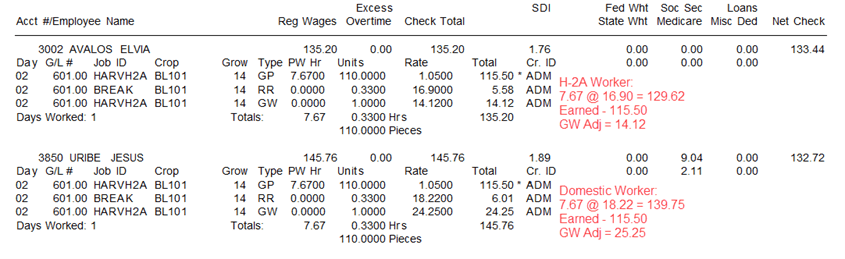
Two employees picked the same number of pieces and received the same piecework wages. Using the setup on the Pay Rate table above, the following adjustments are made:
This work is under the “Agricultural Workers, All Other jobs” classification with a AEWR of 18.22.
Employee 3002 is an H-2A worker with the adverse compensation adjustment. So, their break rate and their minimum wage are adjusted to the rate of 16.90.
Employee 3850 is a domestic worker, so their break rate and minimum wage are adjusted to the H-2A rate of 18.22:
NOTE: If you have domestic workers that are not in corresponding employment, you will need to make sure their payroll entries are not coded with the same combination(s) set up in the Pay Rate Table that apply minimum rates to H-2A and related workers.
METHOD 3 (NOT RECOMMENDED)
Some customers choose to define the AEWR rates with their data collection software and would like to have all the calculations done in that system before bringing the data into Datatech Software. In this case, the program would have to be set so as not to perform any minimum wage calculations.
Because no minimum wage calculations would be done, the program would also not be able to accurately calculate Rest & Recovery, Sick Pay or Overtime Premium Rates. Therefore, that data also needs to be sent by the data collection system.
When using this method, no adjustments to the wages can be made on the payroll side. If a correction is needed after importing, you would need to delete entries, correct them in the data collection system and re-export/import.
To use this method, all wage types need the Minimum Wage entry set to No as seen below.

When creating checks, the default setting to calculate minimum wage would still be selected, but no calculations will be performed due to the wage type settings. You also need to remove any set up of Rest & Recovery definitions so those are not re-calculated.
If you would like to discuss these issues with a support rep, please contact us before making any changes to your set up.